
Part of the In-Depth Guides series.
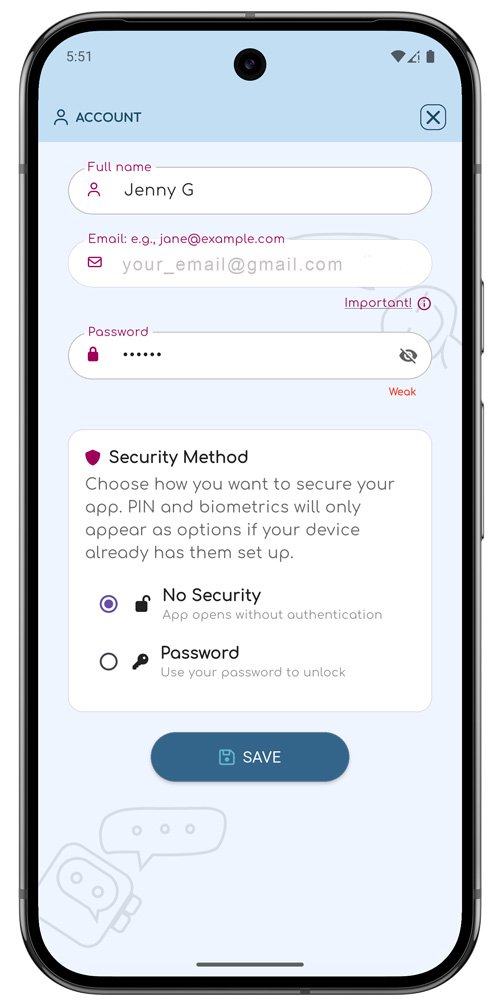
The Account section shows your current login information and lets you manage your profile. You can update your name, change your password, and adjust your security settings.
Your email is used as your main account identifier and cannot be changed. Your account can only be active on one device at a time, and data is not shared between devices. If you activate your account on another device, your current device will automatically lose access.
If a login attempt is not yours, simply ignore it. The new device will not be able to proceed without the required 6-digit verification code.
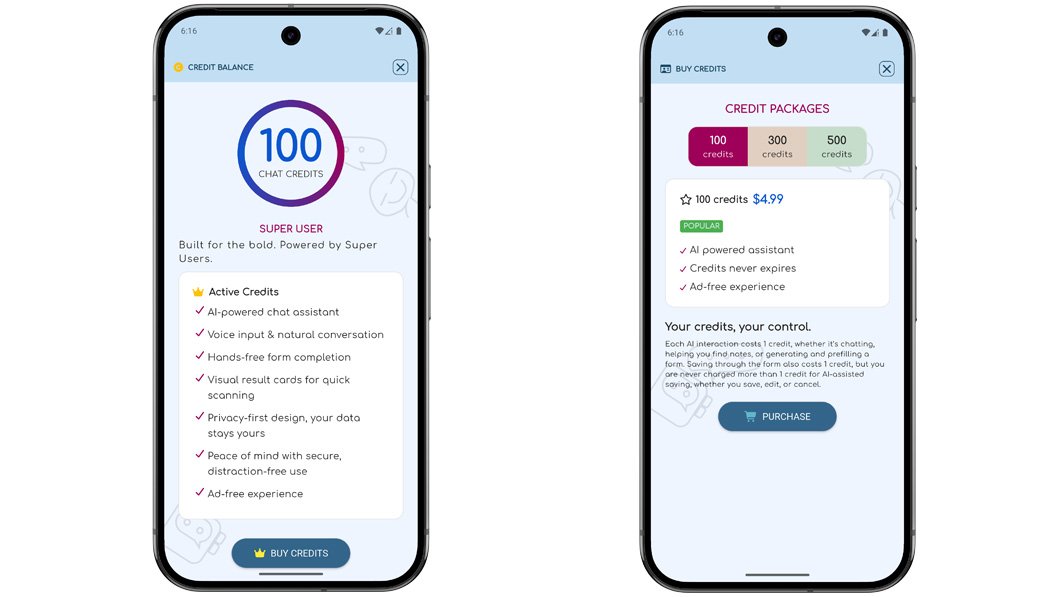
The Credit Balance section displays how many credits you currently have available. Credits are used each time you interact with your ChatNotr assistant — such as saving notes, creating tasks, or managing checklists through chat.
You can view your remaining balance here and top up when needed. Staying aware of your credit balance helps ensure your assistant is always ready when you need it.
App Settings lets you customize how ChatNotr works to better fit your workflow. You can adjust preferences such as theme, assistant behavior, and other options that control the app's daily experience.
AI Assistant Name: This is the name of your AI assistant. It is how the assistant identifies itself within ChatNotr.
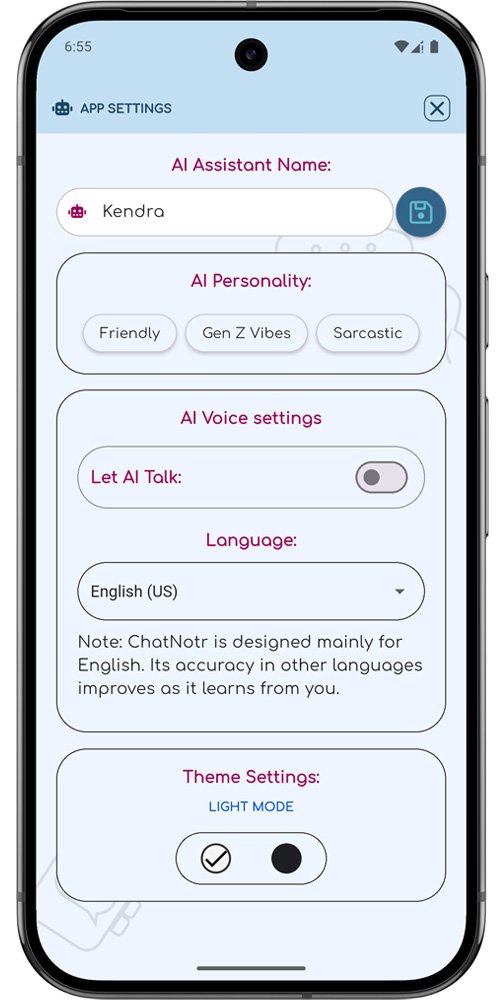
AI Personality: This controls how your AI assistant responds and interacts with you. You can choose a style such as Friendly, Sarcastic, or Gen Z to match the tone and behavior you prefer.
Let AI talk: When enabled, your AI assistant can respond using voice. This feature is currently in experimental stage.
Language: You can change the app's interface language from the available options: English, Arabic, German, Spanish, French, Japanese, Filipino, Korean, Russian, and Simplified Chinese.
Theme Settings: You can switch between light and dark mode to change the appearance of the app.
The About section tells the story behind ChatNotr™ — a smart, AI-powered, chat-based note-taking assistant built by two friends who simply needed a better way to remember things.
The Data Policy section outlines how ChatNotr handles your personal information and the data you store within the app. You can review what data is collected, how it is used, and what controls you have over it.
Reading through the data policy helps you understand your privacy rights and make informed decisions about how you use ChatNotr. Your data security matters, and this section gives you full transparency.
Tap here to read our full Privacy Policy.
The Terms of Service outline the rules and expectations for using ChatNotr. By using the app, you agree to use it lawfully and responsibly, and not to misuse or attempt to reverse engineer it.
Your data stays on your device and belongs entirely to you — ChatNotr does not access or back it up. The app is provided as-is, and ChatNotr is not liable for data loss or damages arising from use of the app.
For the full details, you can read the Terms of Service or contact us at support@chatnotr.com.
Have an idea that would make ChatNotr better? The Feedback and Suggestions section is your direct line to the ChatNotr team. You can submit feature requests, report problems, or share anything you think would improve the experience.
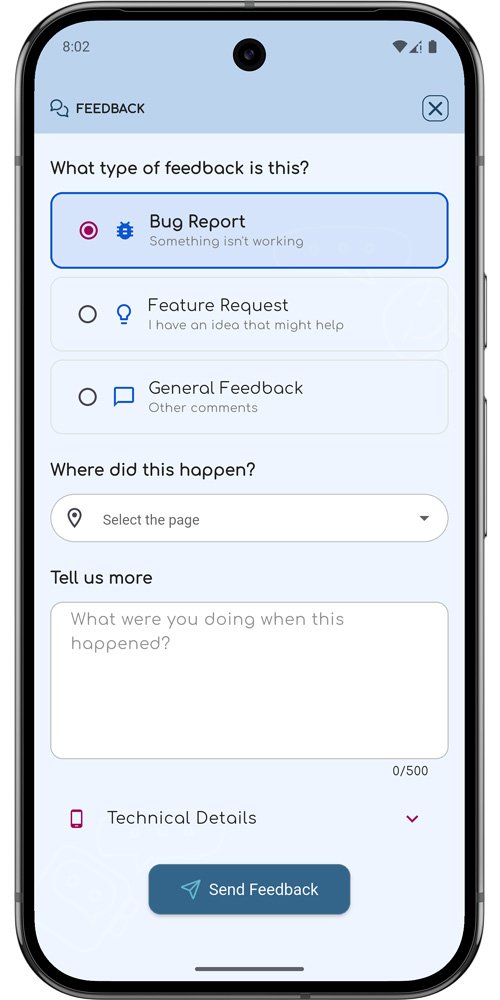
What type of feedback is this?: Choose whether your feedback is a bug report, feature request, or general feedback about ChatNotr.
Where did this happen?: Select the screen where the issue occurred. This helps us identify where the problem happened and investigate it more accurately.
Tell us more: Use this field to describe the issue, suggestion, or feedback in detail. Include what happened, what you were trying to do, and any important information that may help us better understand the situation.
Always check for a newer version of ChatNotr. Keeping the app up to date ensures you have the latest features, performance improvements, and bug fixes.