
Part of the In-Depth Guides series.
An Appointment is anything that has a "when" and requires you to be there. Meetings, doctor visits, client calls, reservations. If it happens at a specific time and you need to show up, it belongs here.
Unlike a Pin, which is just stored information, or a Task, which is something you need to do, an Appointment is about presence. You are not just completing it, you are attending it.
Just mention it naturally and ChatNotr keeps track of it and surfaces it at the right time so you do not miss it.
(Utilizing your assistant through the chat screen)
Just tell ChatNotr what it is and when. Every appointment requires a date and time, so be sure to include both in your message.
ChatNotr picks out the event name, date, and time from what you said and pre-fills the Appointment form for you. The save screen opens so you can confirm everything looks right. If any detail is off, you can fix it right there before saving. What gets stored is exactly what you intended.
(Utilizing your assistant through the chat screen)
Ask about your schedule the way you'd ask another person. You don't need exact wording. Just describe what you're looking for or ask about a time period.
To edit or delete an Appointment, look for the delete mode toggle in the top right of your screen and turn it on.
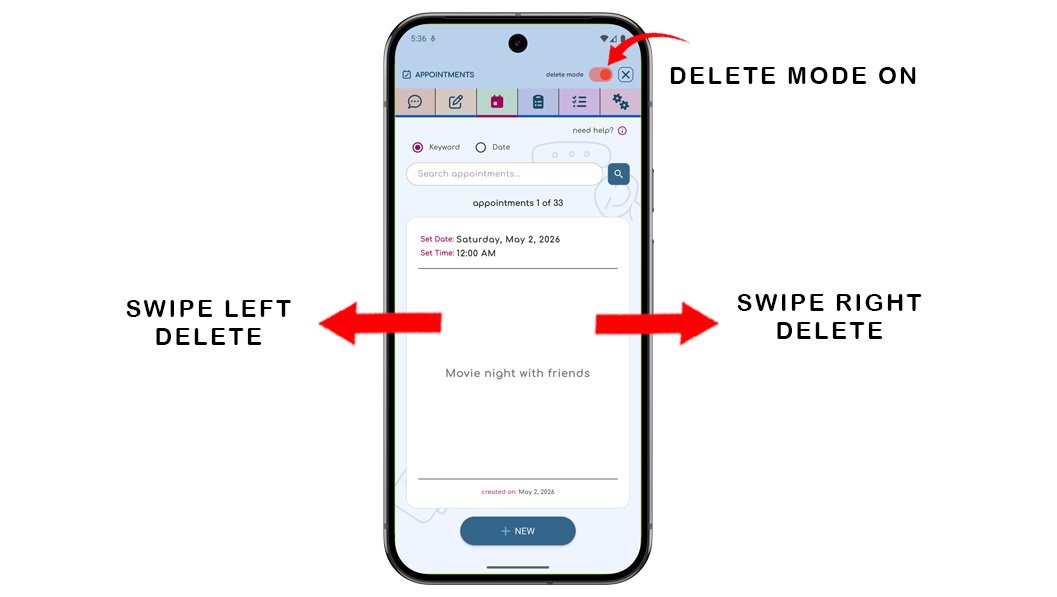
Once delete mode is on, your saved Appointments become interactive:
ChatNotr will not ask for confirmation. This is intentional by design. The delete mode toggle acts as your safeguard, so once you turn it on, editing and deleting is smooth and uninterrupted.
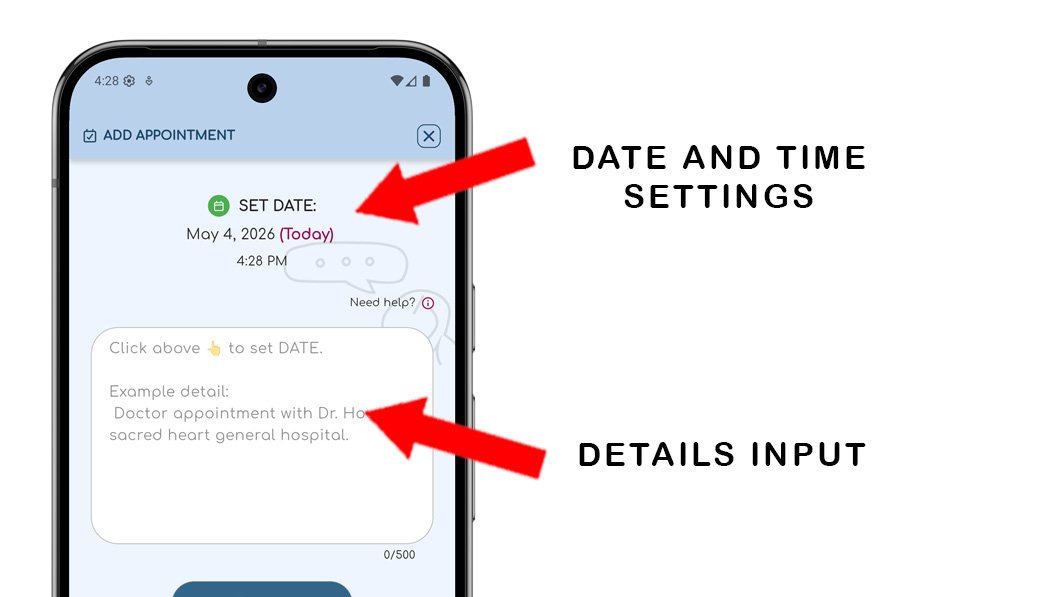
An Appointment needs three things: the details of the event, a date, and a time. The details describe what the event is about. The date and time tell ChatNotr when it happens so it can surface it at the right moment.
You can be as detailed as you want like adding location, a contact name, what to bring, or anything else worth remembering.
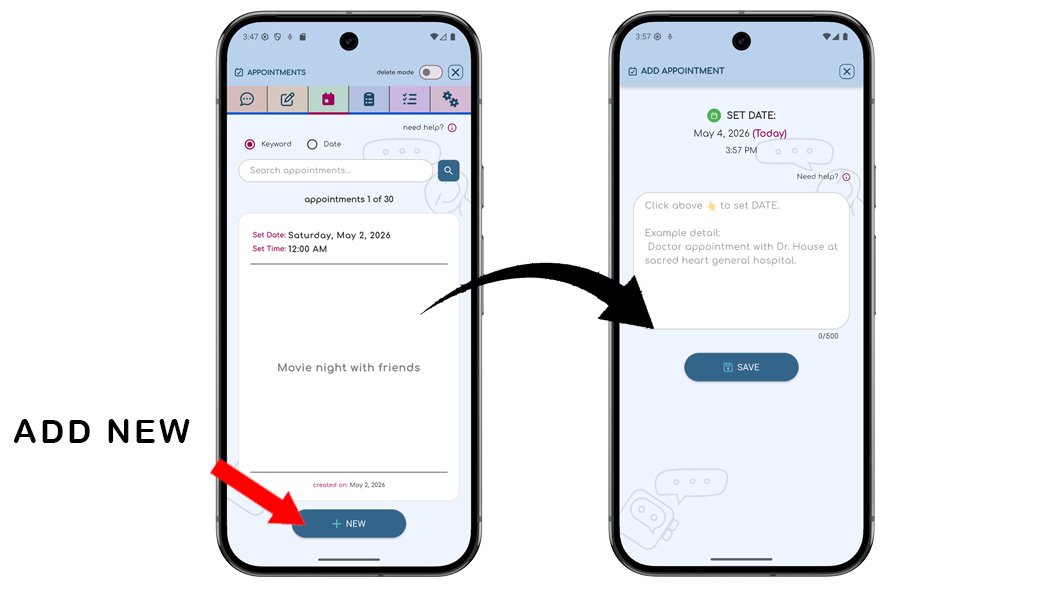
If you prefer to add an Appointment manually, tap the New button at the bottom of the screen and fill in the details yourself.
You can also search Appointments directly from the Appointments screen. Just type a keyword or date into the search box and press the search button to filter the cards.
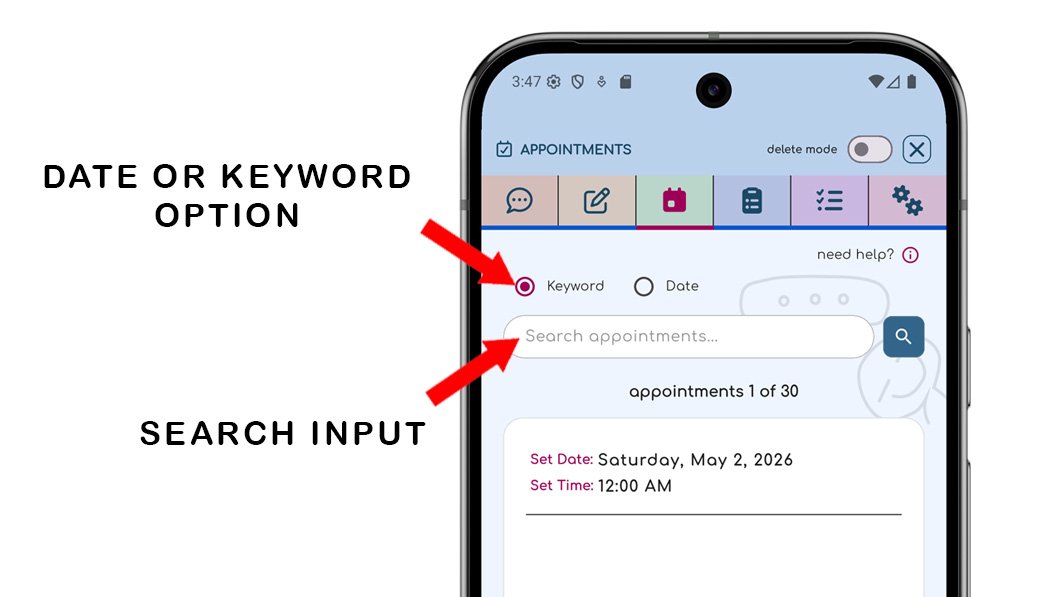
ChatNotr filters your saved Appointments and displays matching results as cards you can swipe through. The list is already narrowed to what's relevant, so finding your appointment takes just a swipe or two. Swipe up or down to browse through your Pin cards.
Keywords: Use some keywords to search your appointments.
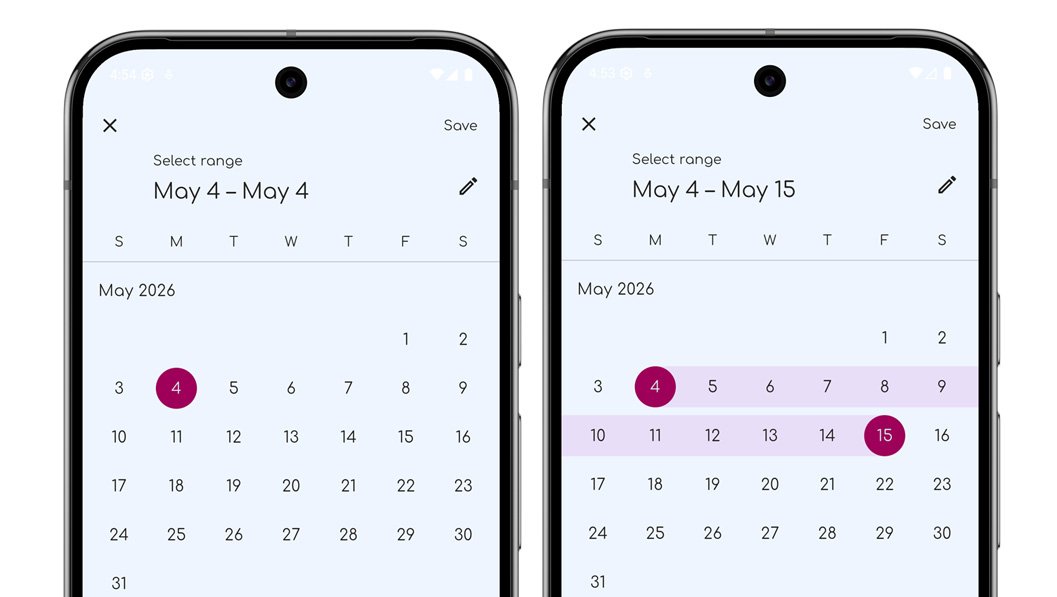
Date: To select a single day, tap the same date twice. To choose a range, select a start date and an end date. Make sure the search option is set to “Date” to use this feature.
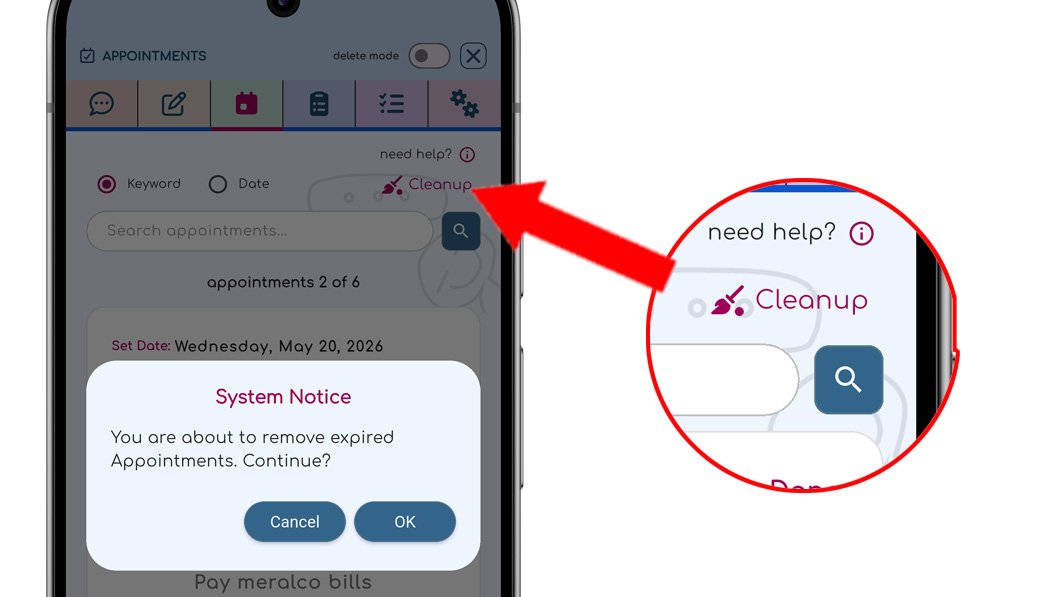
A new Cleanup button has been added to automatically delete all expired appointments. Instead of removing appointments one by one, you can now clear all expired appointments instantly with a single tap. A confirmation pop up will appear before deletion to help prevent accidental removal of appointments.
If it has a date and time and requires you to be present, it belongs in Appointments:
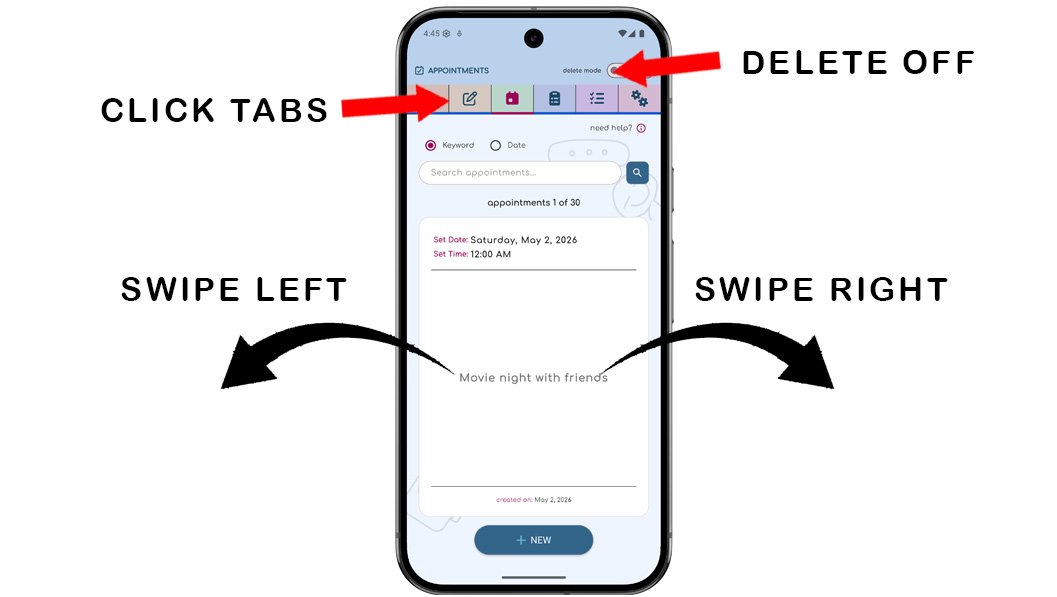
ChatNotr knows when to open the Appointments screen for you, but you can also get there yourself in two ways: by tapping the tab icon at the top of the screen, or by swiping left or right to move between screens. Be sure to turn off the delete mode toggle so you don't accidentally delete your appointments.
Continue to the Tasks Category to learn how ChatNotr helps you organize and manage your to-do items efficiently.