
Part of the In-Depth Guides series.
A Task is something you need to do. It may or may not have a deadline, but it requires action. If an Appointment is about showing up, a Task is about getting something done.
Tasks can be simple reminders or part of a longer list. Whether it's "buy groceries" or “finish project report by Friday,” ChatNotr keeps track so nothing slips through.
(Utilizing your assistant through the chat screen)
Just say what you need to do. You can include a date and time if the task has a deadline, or leave it open if it doesn't.
ChatNotr extracts the task details and fills in the form for you. You can review and adjust anything before saving.
(Utilizing your assistant through the chat screen)
Ask naturally or browse your Tasks screen. You don't need exact phrasing.
Your tasks appear as a list. The list can be filtered so you see what's relevant right away.
You can also search directly using keywords or dates to narrow results instantly.
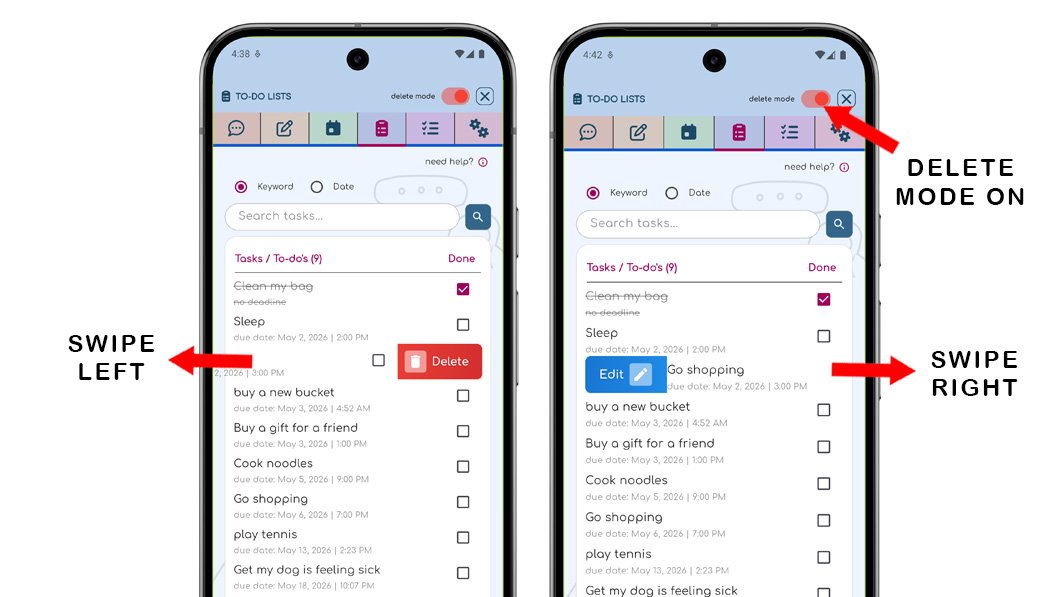
Turn on the delete mode toggle at the top right of the screen.
There is no confirmation step. The toggle itself acts as your safeguard, so actions stay quick and uninterrupted.
A task has three parts: the details, the date, and the time.
The details describe what needs to be done. The date and time tell ChatNotr when it's due, so you can easily see and track it at a glance.
If you prefer to add a Task manually, tap the New button at the bottom of the screen and fill in the details yourself.
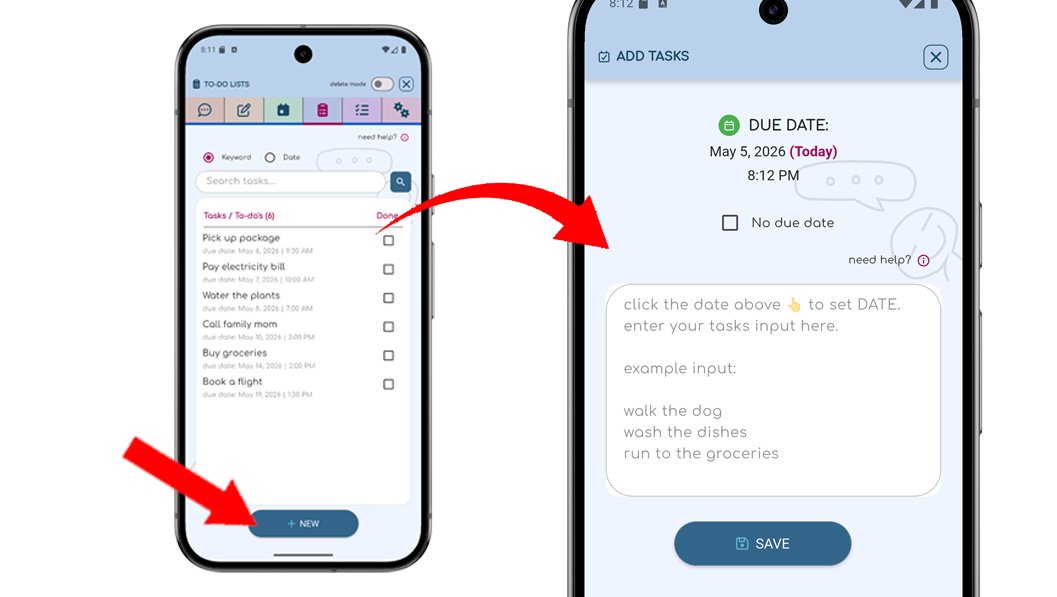
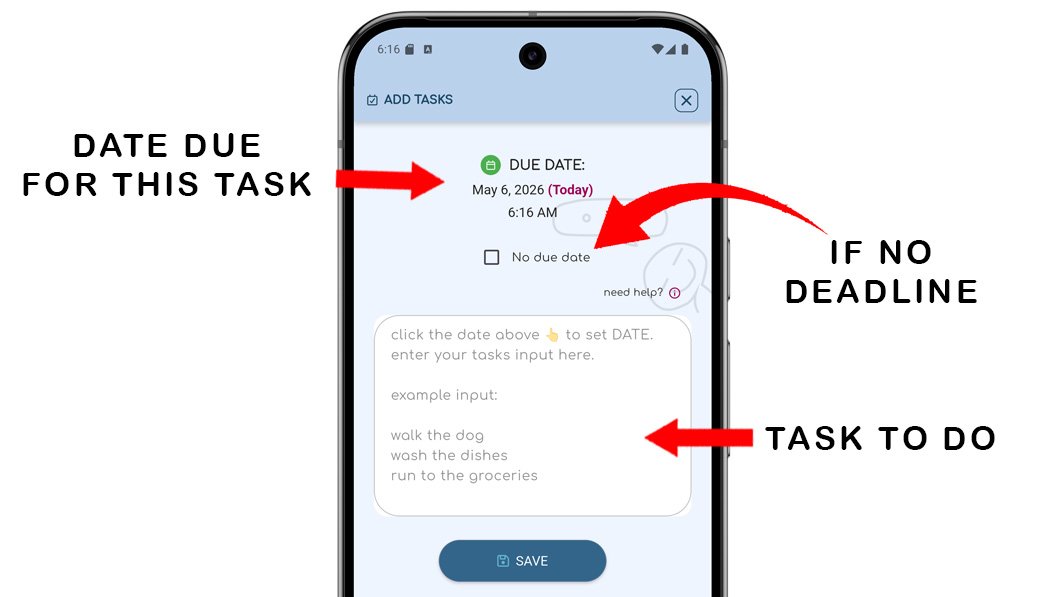
Multiple task: You can add multiple tasks at once, with each task on a separate line. If multiple tasks are added in one batch, they will be displayed as separate tasks in the list, but they will share the same date and time, or have no due date if the 'no due date' option is selected.
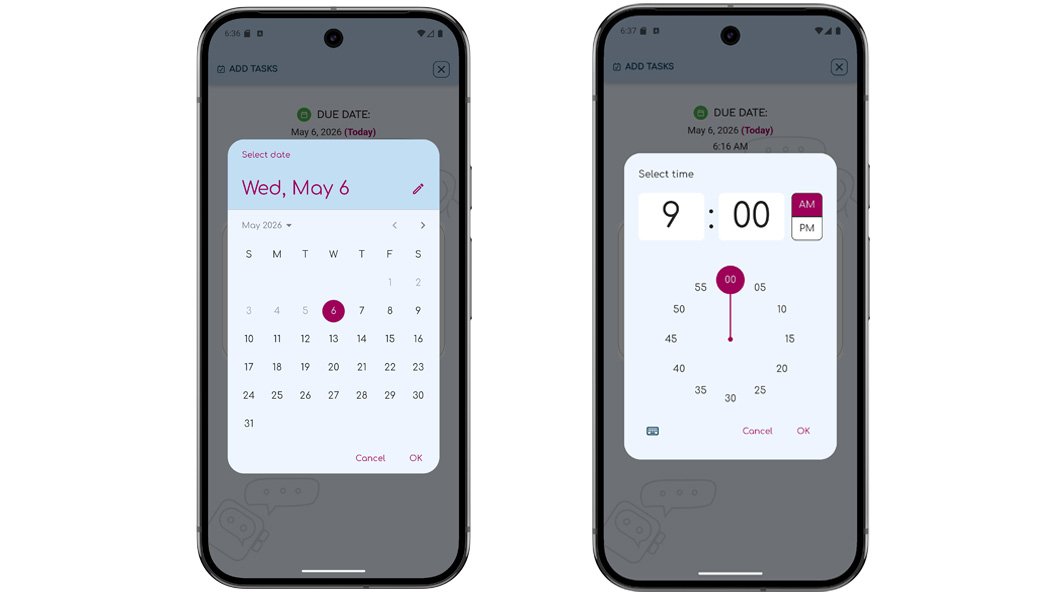
Date and time: First select a date, then choose the time for your task’s due date.
You can also search Appointments directly from the Appointments screen. Just type a keyword or date into the search box and press the search button to filter the cards.
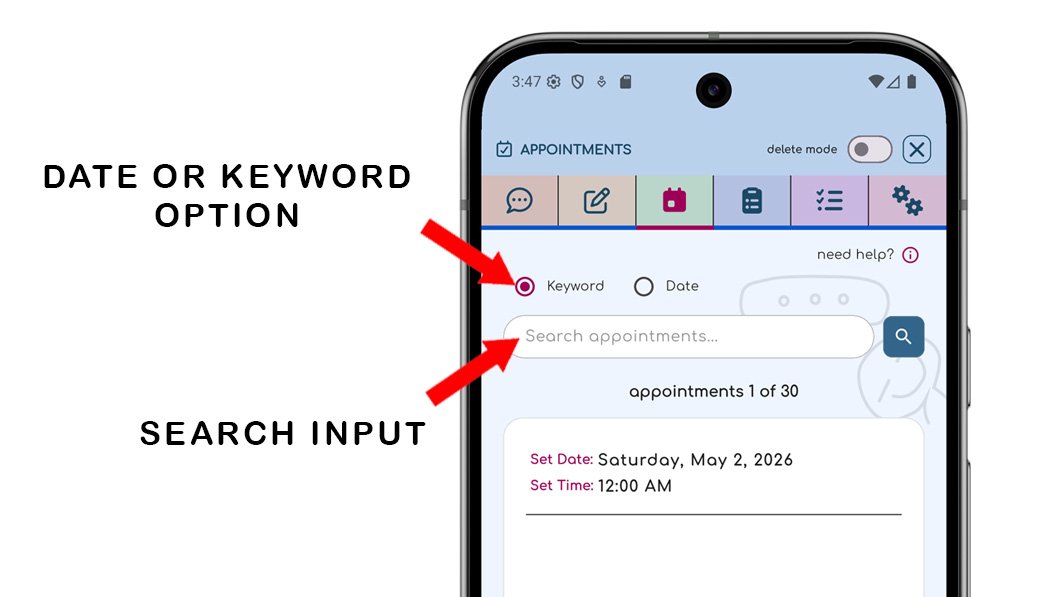
ChatNotr filters your saved Appointments and displays matching results as cards you can swipe through. The list is already narrowed to what's relevant, so finding your appointment takes just a swipe or two. Swipe up or down to browse through your Pin cards.
Keywords: Use some keywords to search your appointments.
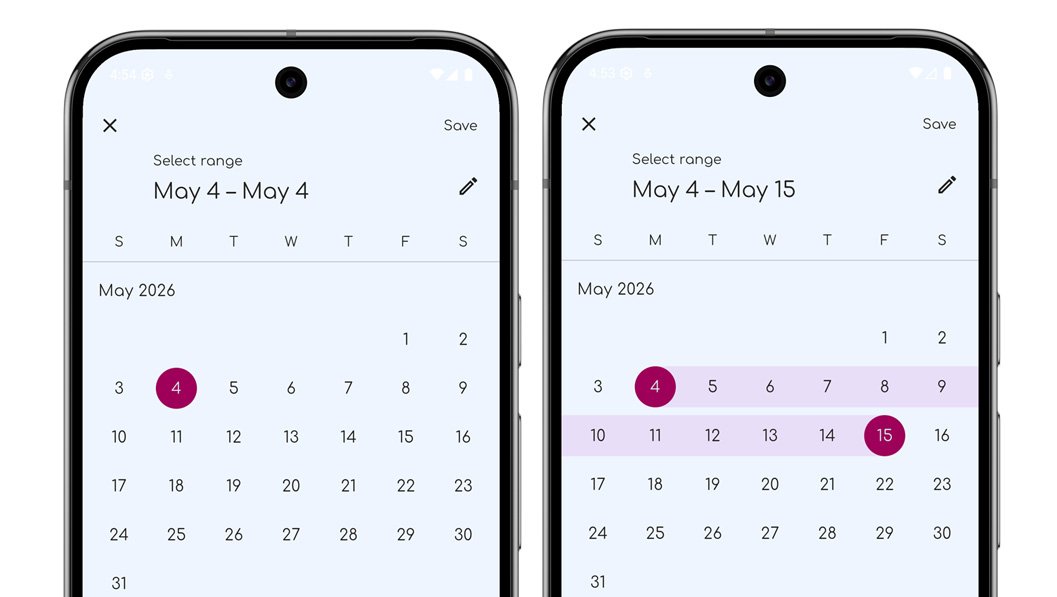
Date: To select a single day, tap the same date twice. To choose a range, select a start date and an end date. Make sure the search option is set to “Date” to use this feature.
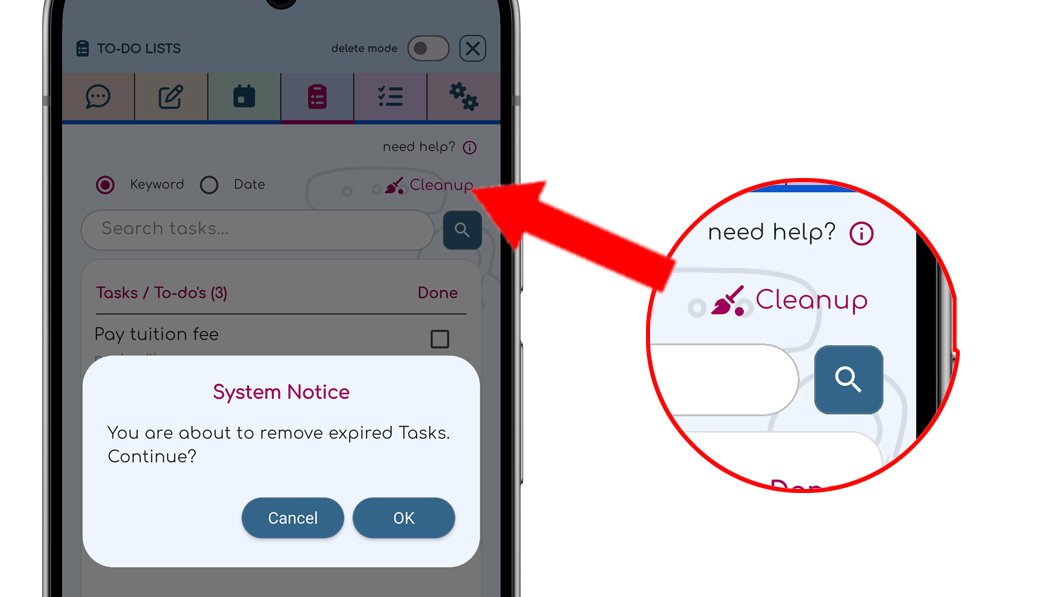
A new Cleanup button has been added to automatically delete all expired tasks. Instead of removing tasks one by one, you can now clear all expired tasks instantly with a single tap. A confirmation pop up will appear before deletion to help prevent accidental removal of tasks.
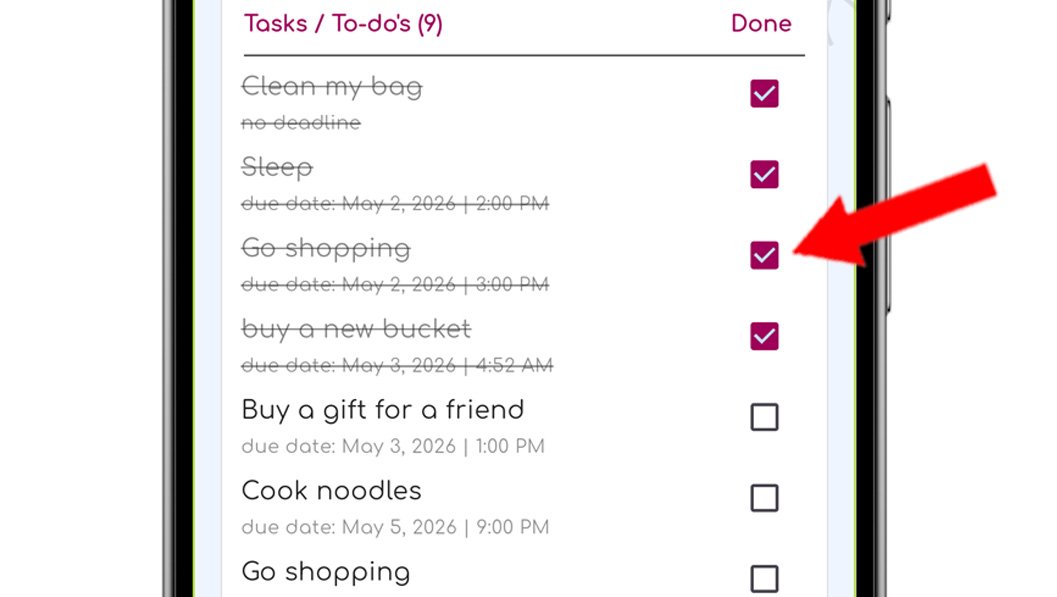
Mark tasks as complete to visually track what you've finished. Completed items stay in your list, helping you see progress at a glance.
If it's something you need to do, it belongs here:
Continue to the Checklists Category to learn how ChatNotr helps you create, edit, and manage structured lists of items.