
Part of the In-Depth Guides series.
The Chat screen is where everything happens in ChatNotr. It is your AI command center, where you talk to ChatNotr and it handles what you need. Whether you want to save something, find something, or just ask a question, it all starts here.
You do not need to navigate menus or fill out forms. Just type or speak in plain language and ChatNotr handles the rest.
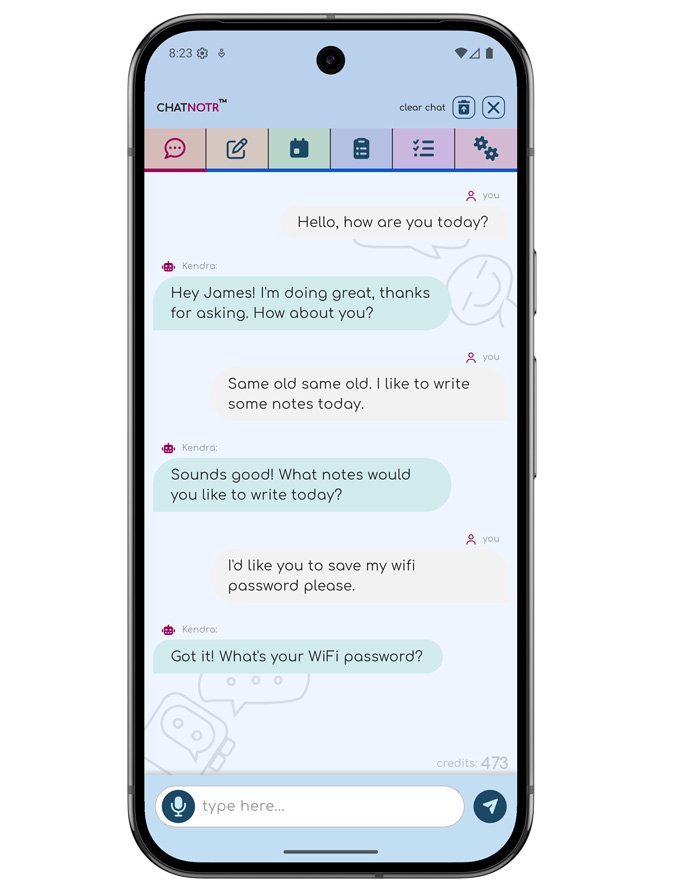
ChatNotr listens to what you say and understands your intent, whether you are trying to save something, find something, or just chat. It then acts on that intent automatically, opening the right screen or showing the right results without you needing to guide it step by step.
It understands natural, casual language. You do not need specific commands or exact wording. Just speak the way you normally do.
To save anything such as a pin, task, appointment, or checklist, just describe what you want to store. ChatNotr identifies the type of note, pre fills the details, and opens the save screen for you to confirm.
Once the save screen opens, review the details and press save. If anything looks off, you can edit it right there before it gets stored.
You can check an in depth guide for each category on the How It Works page.
Ask for your notes the same way you'd ask a person. ChatNotr searches your saved records and opens the relevant screen to display the results.
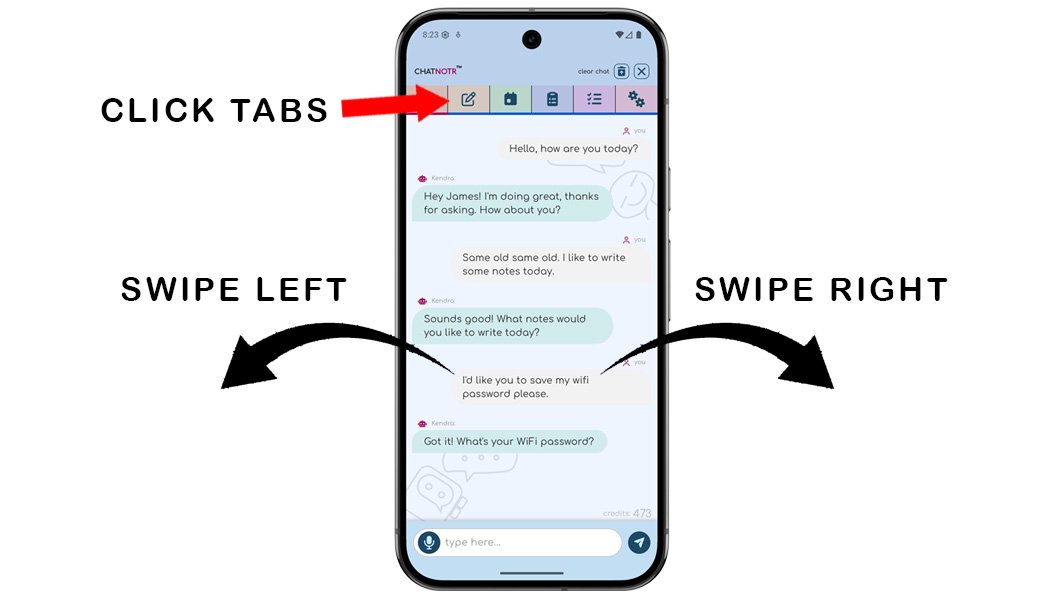
ChatNotr knows when to open the other screens for you, but you can also get there yourself in two ways: by tapping the tab icon at the top of the screen, or by swiping left or right to move between screens.
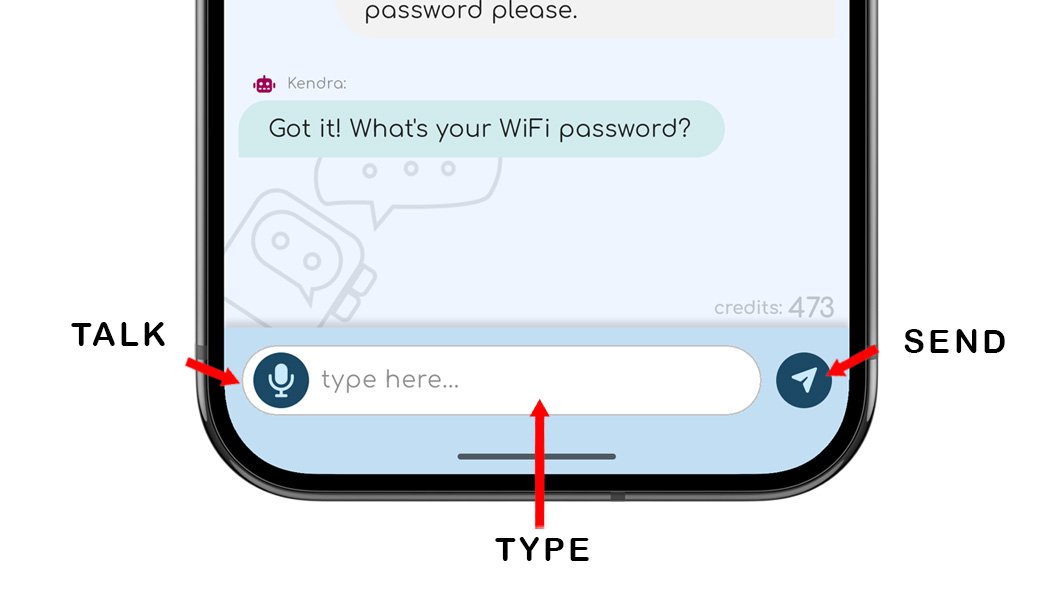
ChatNotr lets you input in two ways. You can type your message or use your voice. Tap the text field to type then press send, or tap the microphone button to speak. Either way, ChatNotr understands you the same and responds the same way.
Voice input is useful when your hands are busy or when speaking feels faster. Just talk naturally and ChatNotr will process it just like a typed message.
To chat, type your message in the input box at the bottom of the screen and press send.
To talk, press the mic once, wait for the beep, and speak. Recording starts automatically and stops when you finish, then your message is sent automatically.
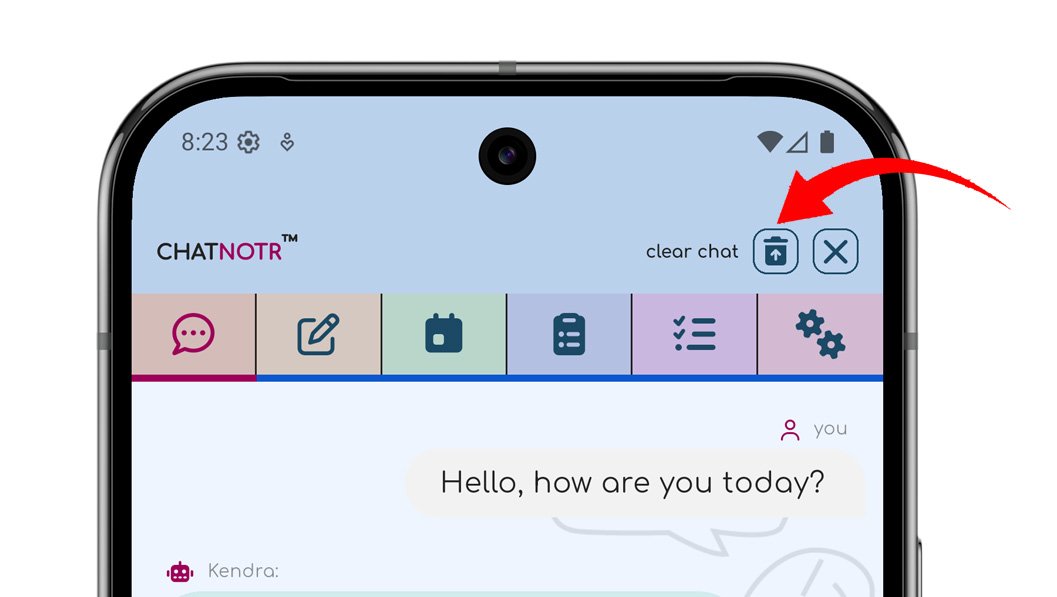
The Chat screen keeps a recent history of your conversation with ChatNotr, storing the last 5 exchanges so the AI always has context and stays relevant to what you are doing. If you want a fresh start, you can use the clear chat button at the top right corner of the screen to reset the conversation instantly.
All chat history stays on your device to protect your privacy. Read our privacy policy page: Privacy Policy.
Continue to the Pins Category to learn how to save and manage quick notes, thoughts, and ideas.