
Part of the In-Depth Guides series.
A Pin is a fact or snippet you want to be able to look up later. It's the simplest note category in ChatNotr — no due date, no checklist, no schedule. Just a piece of information you want saved and within reach the moment you need it.
Pins are perfect for the kind of thing you'd otherwise scribble on a scrap of paper and lose: a phone number, a measurement, a password hint, a reference code, something someone told you that you don't want to forget.
(Utilizing your assistant through the chat screen)
Tell ChatNotr what you want to remember. The word "pin" gives it an immediate, unambiguous signal — but you can be more casual too and it will still figure it out.
ChatNotr will pre-fill the Pin form for you and bring up the save screen. If everything looks right, just press save. If anything needs adjusting, you can update it right there before it gets stored. Either way, what gets saved is exactly what you intended.
(Utilizing your assistant through the chat screen)
Ask for it the same way you'd ask a person. You don't need to remember exact wording — just describe what you're looking for.
ChatNotr filters your saved Pins and displays the results as cards you can swipe through. Even if there are several matches, the list is already narrowed down to what's relevant, so finding exactly what you're looking for takes just a swipe or two. Swipe up or down to browse through your Pin cards.
To edit or delete a Pin, look for the delete mode toggle in the top right of your screen and turn it on.
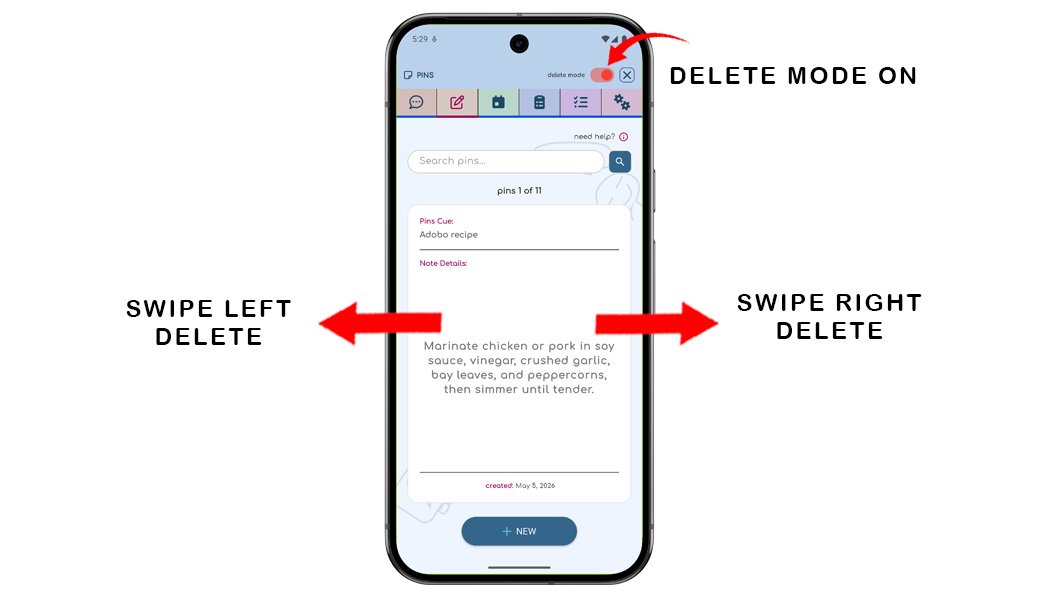
Once delete mode is on, your saved Pins become interactive:
ChatNotr will not ask for confirmation. This is intentional by design. The delete mode toggle acts as your safeguard, so once you turn it on, editing and deleting is smooth and uninterrupted.
If you prefer to add a Pin manually, tap the New button at the bottom of the screen and fill in your details yourself.
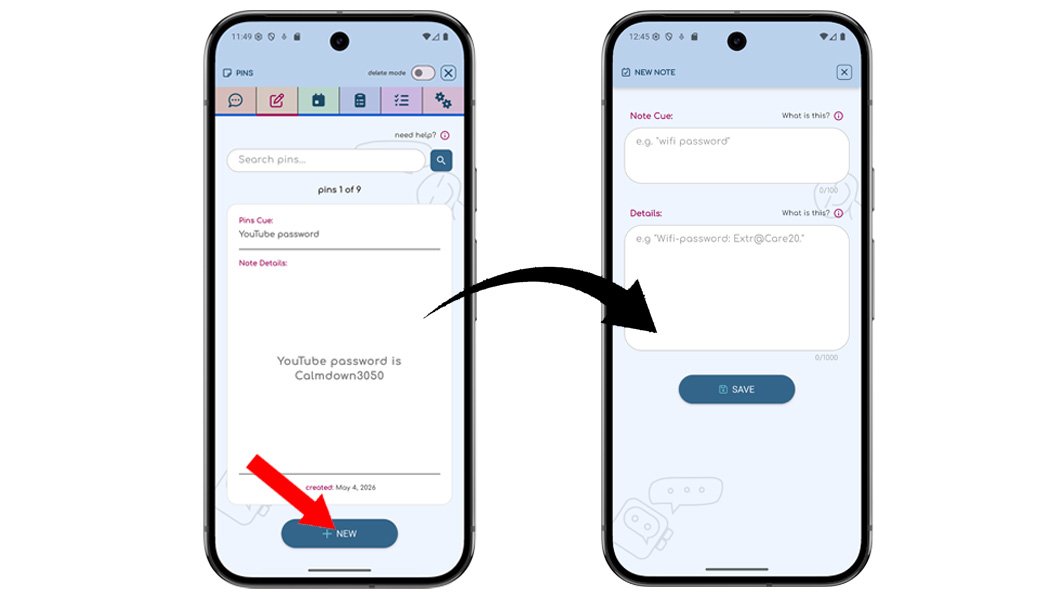
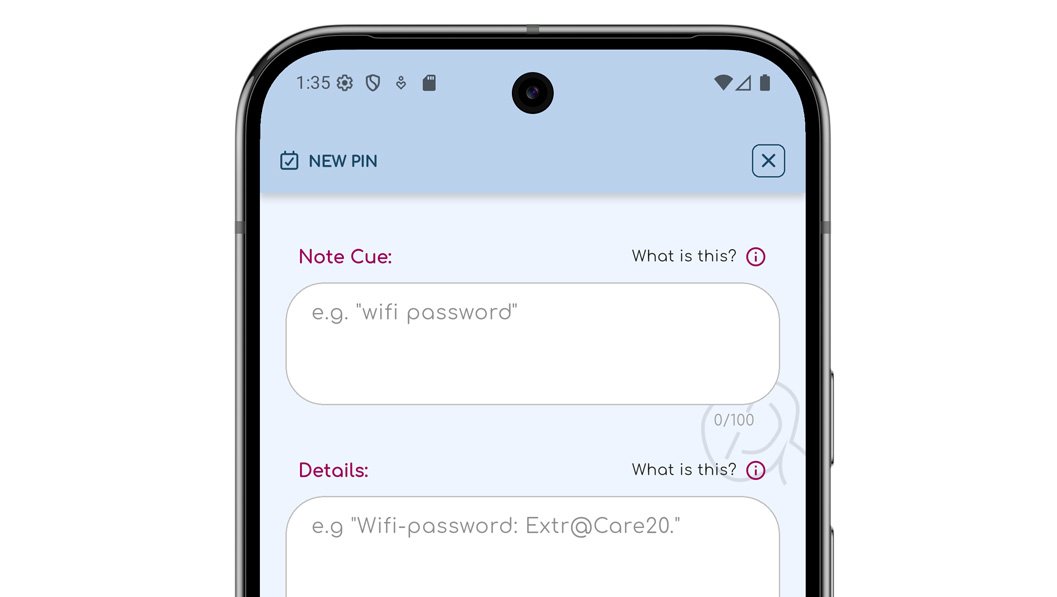
To save a pin, you need two things: a cue and details. The cue is a short hint that tells you what the pin is about — think of it as a label or reminder word. The details is the full description or the actual information you want to save.
You can also search Pins directly from the Pin screen. Just type a keyword into the search box and press the search button to filter the cards.
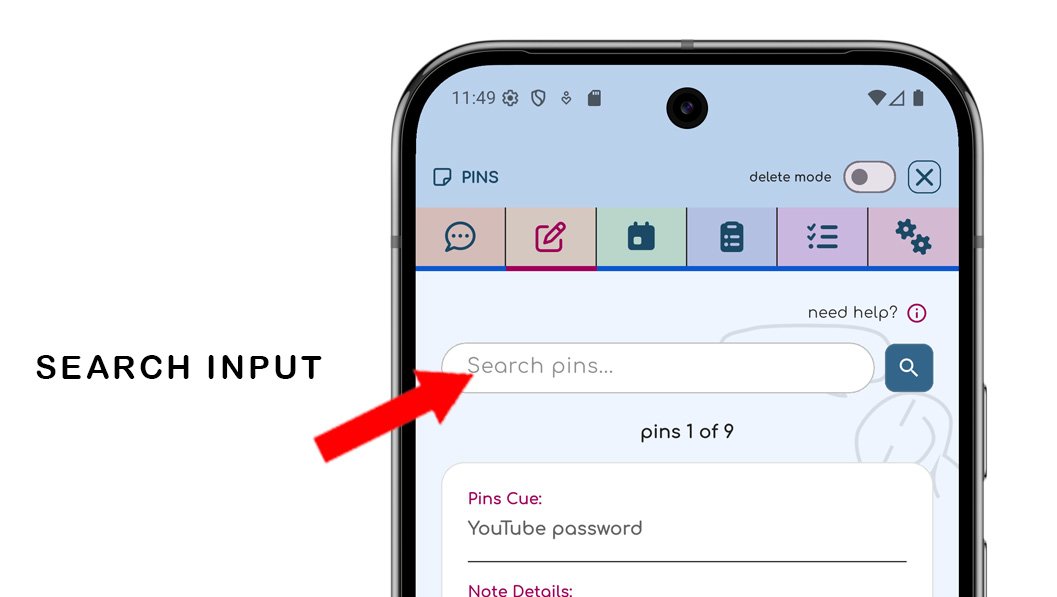
ChatNotr filters your saved Pins and displays matching results as cards you can swipe through. The list is already narrowed to what's relevant, so finding your appointment takes just a swipe or two. Swipe up or down to browse through your Pin cards.
Anything you might otherwise forget or have to hunt for makes a good Pin:
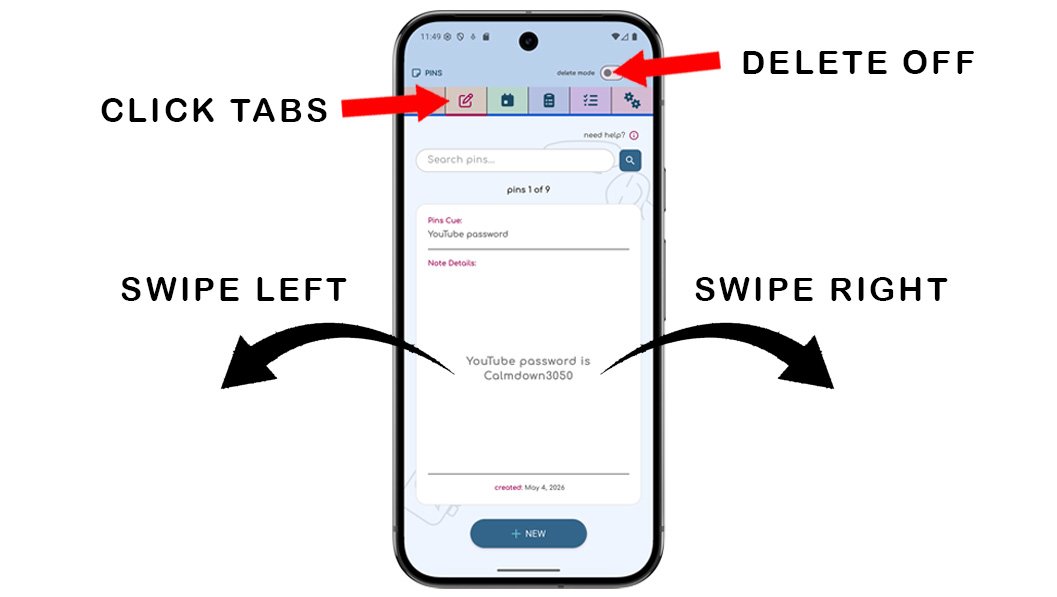
ChatNotr knows when to open the Pin screen for you, but you can also get there yourself in two ways: by tapping the tab icon at the top of the screen, or by swiping left or right to move between screens. Be sure to turn off the delete mode toggle so you don't accidentally delete your pins.
Continue to the Appointments Category to learn how ChatNotr helps you organize and manage your schedules.