
Part of the In-Depth Guides series.
A Checklist is a collection of items grouped under one list. Unlike a Task, which focuses on a single action, a Checklist helps you keep related items organized in one place.
Checklists are useful for things like grocery lists, shopping lists, recipe ingredients, packing lists, or anything you want to keep track of item by item. ChatNotr keeps your lists organized and easy to update whenever you need them.
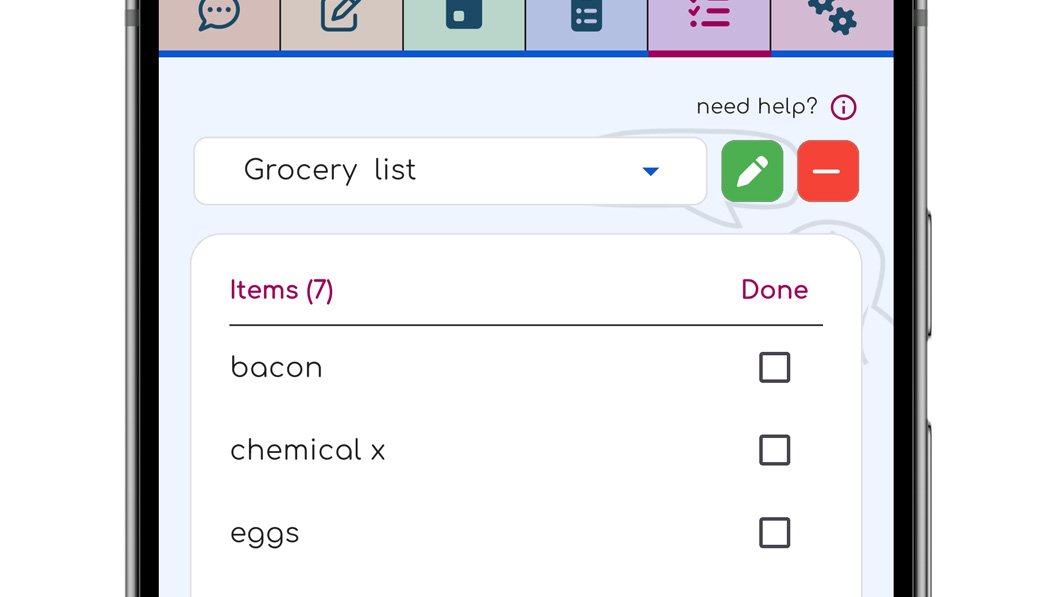
(Utilizing your assistant through the chat screen)
Just describe what you want to track and list the items. You can say them all at once or let ChatNotr prompt you for more details.
ChatNotr extracts the checklist name and each item, then fills in the form for you. You can review and adjust anything before saving.
If the assistant keeps asking for additional items or details, simply reply with "nothing more" to let ChatNotr know the checklist is complete and ready to proceed.
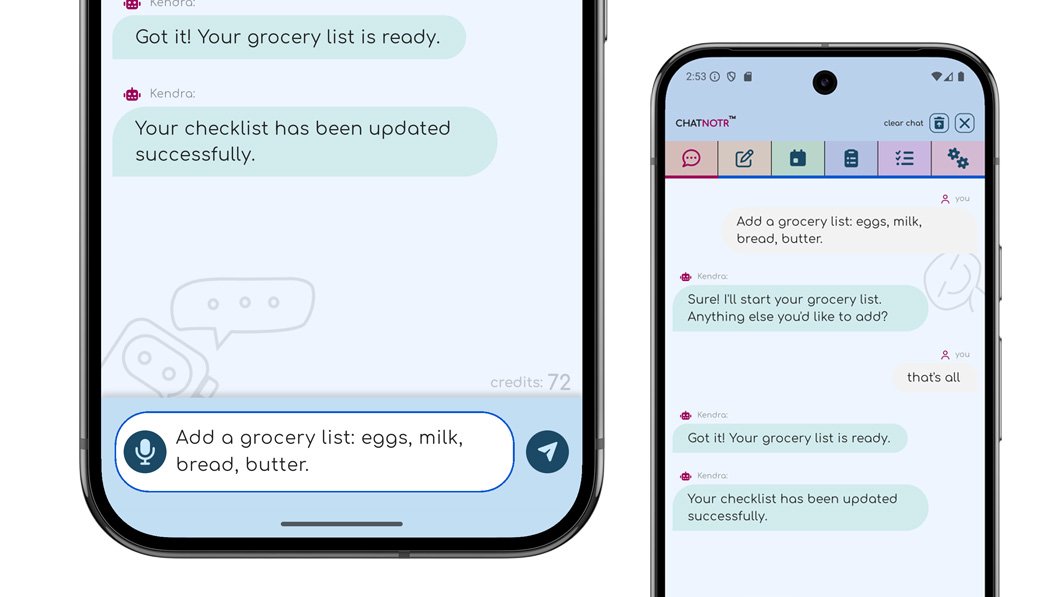
(Utilizing your assistant through the chat screen)
Ask naturally or browse your Checklists screen. You don't need exact phrasing.
Your checklists are shown in a dropdown menu. Selecting a list will display all items belonging to that group.
You can find checklists by selecting them from the dropdown menu or by requesting them through the assistant.
Turn on the delete mode toggle at the top right of the screen.
There is no confirmation step. The toggle itself acts as your safeguard, so actions stay quick and uninterrupted.
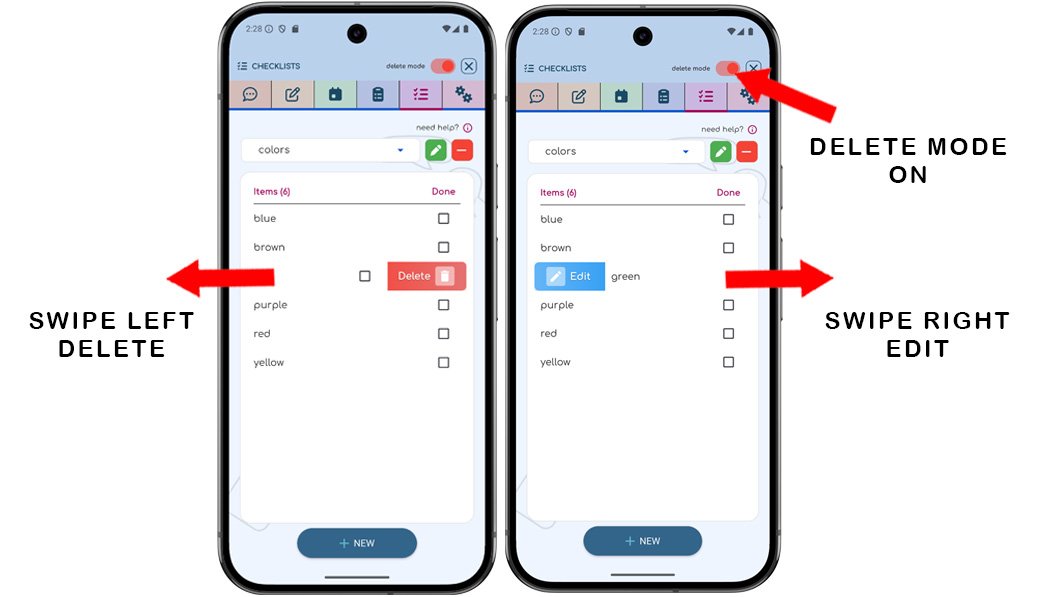
A checklist has two parts: a title and its items.
The title names the list so you can find it quickly. The items are the individual entries you want to track within that list.
If you prefer to add a Checklist manually, tap the New button at the bottom of the screen and fill in the details yourself.
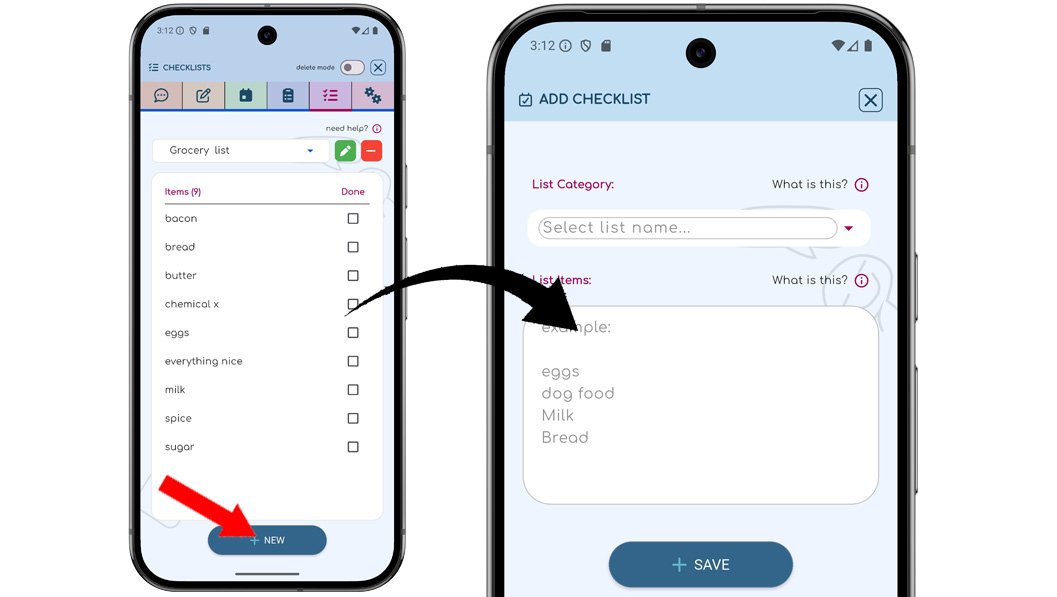
Multiple items: You can edit a checklist by adding or removing items directly in the input box, where each item is shown on a separate line. Any changes you make—whether adding new items, deleting existing ones, or updating content—are automatically saved and applied to the same checklist title.
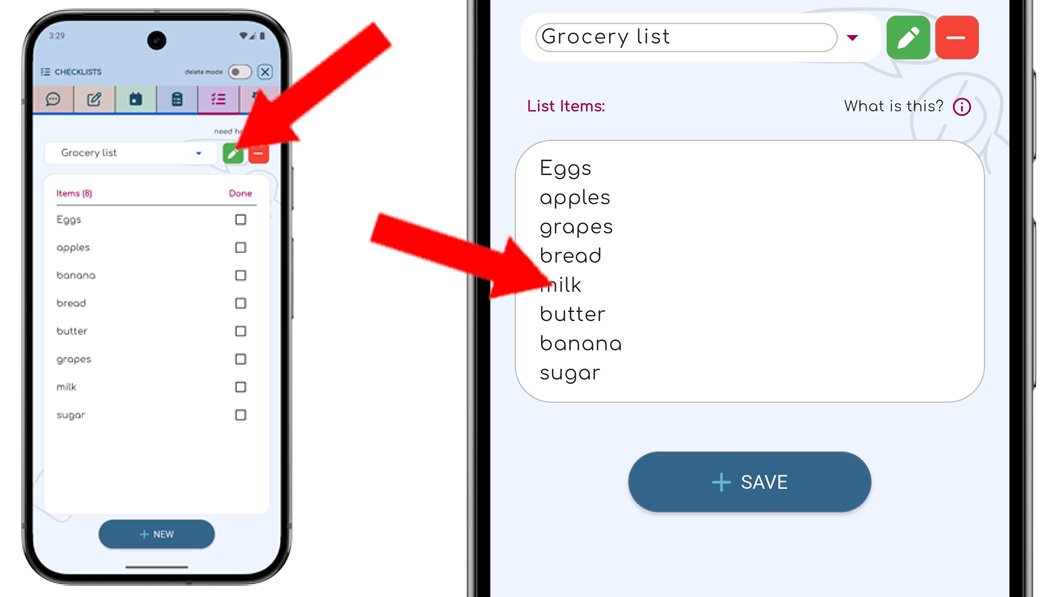
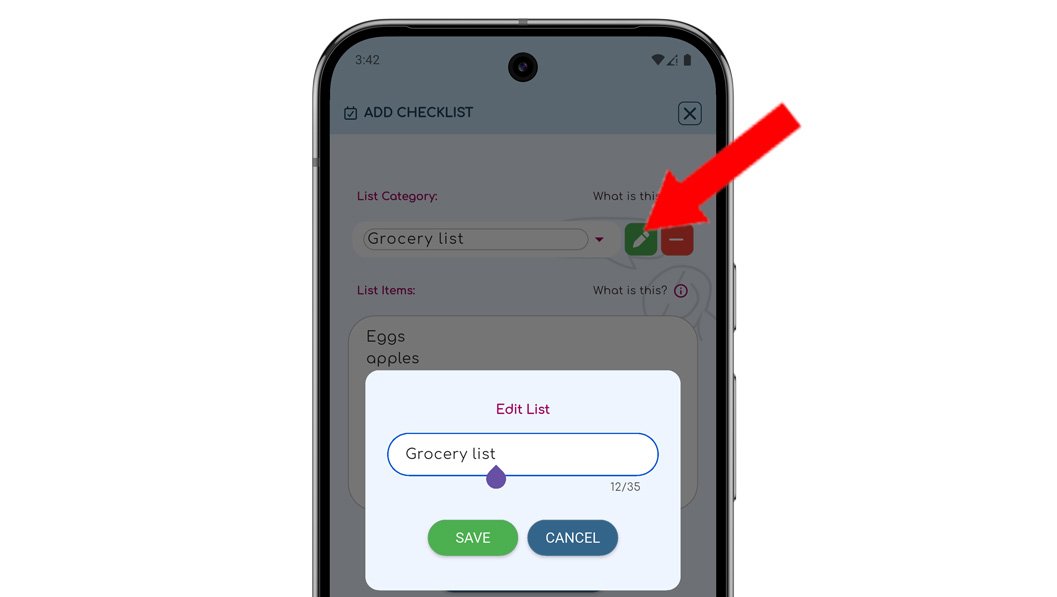
Click the green edit button next to the checklist group title to open a popup where you can update the group name.
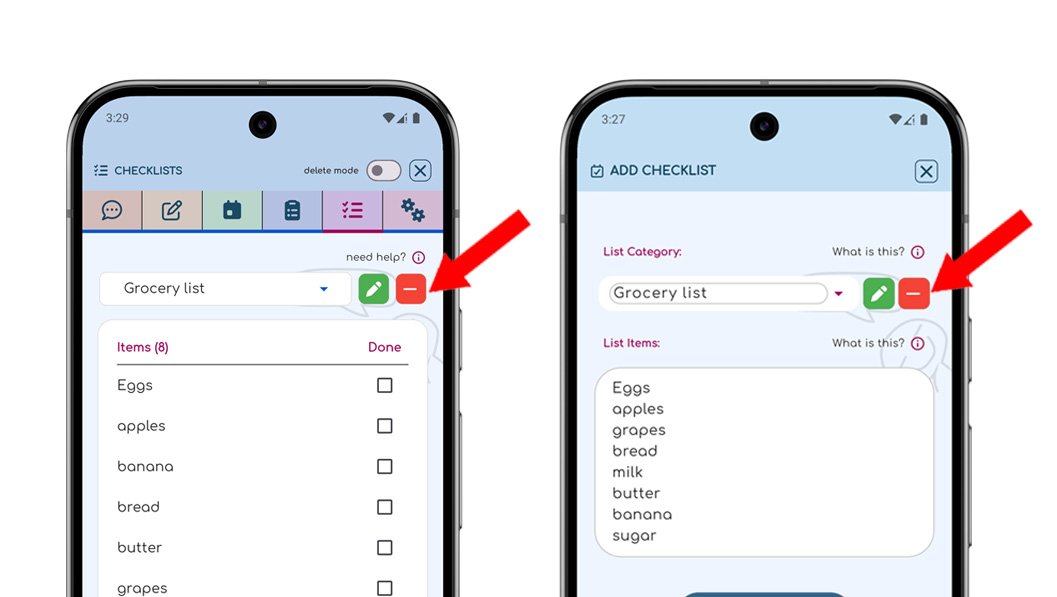
Click the red delete button next to the checklist group title to remove the entire checklist, including all items it contains. You will be asked to confirm before deletion.
You can also search Checklists directly from the Checklists screen. Open the dropdown menu and select a checklist title to filter and display the relevant items in that group.
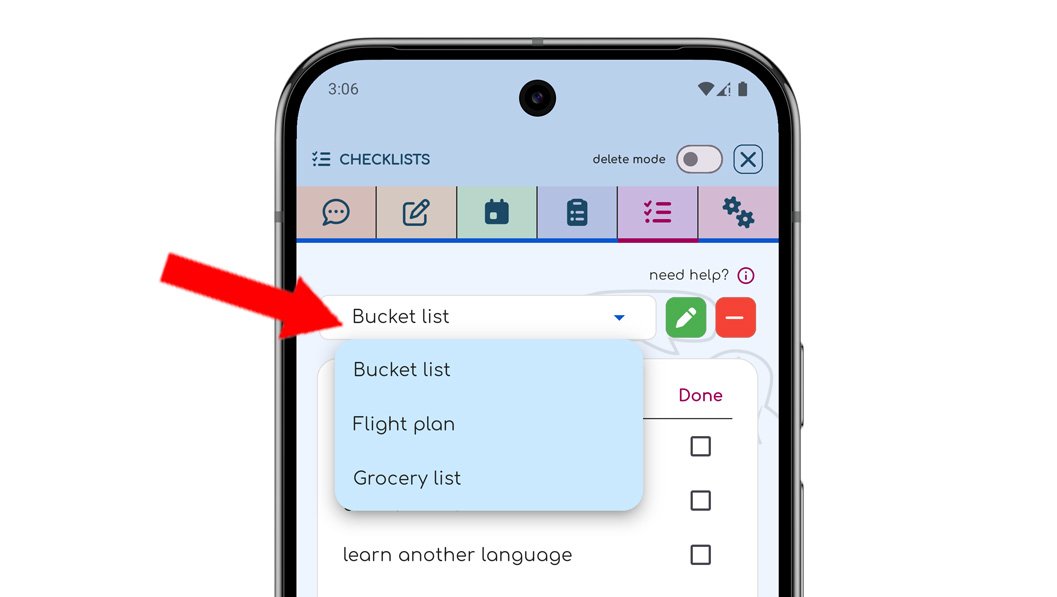
ChatNotr lets you select a checklist group from the dropdown and instantly shows the items inside that group. This makes it easy to quickly access the exact checklist you need without scrolling through unrelated content.
Usage: Choose a checklist title from the dropdown to view its corresponding items.
Tap the checkbox next to an item to mark it as complete. Completed items remain visible so you can easily track your progress.
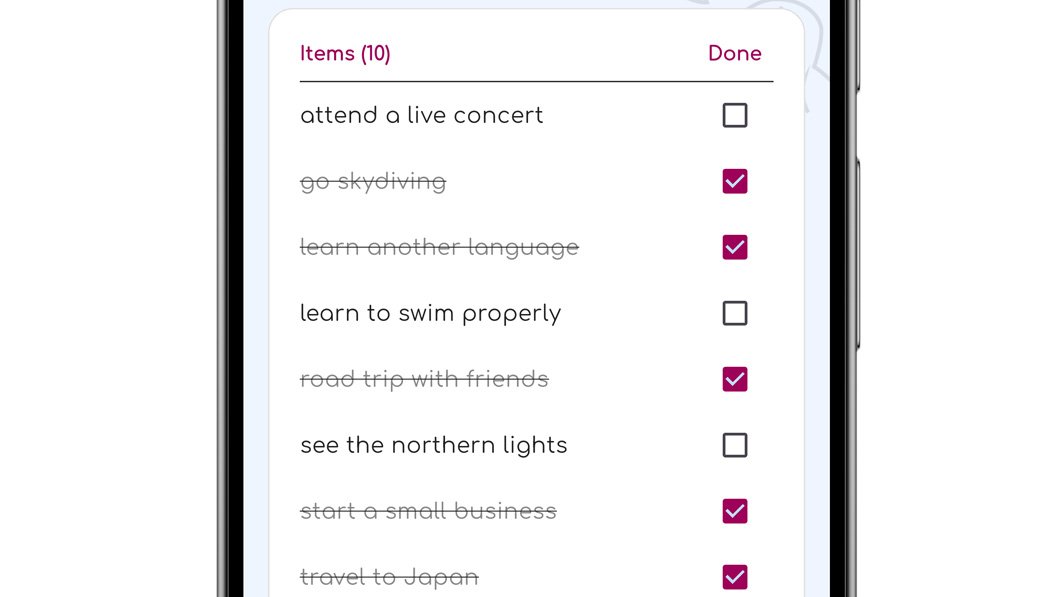
You can uncheck an item anytime if you need to revisit it. The checklist updates instantly, showing completed items with a checkmark and strikethrough text.
Anything with more than one step belongs here:
You've now seen all the main features. Head to the Settings screen to fine-tune your ChatNotr experience.