
Part of the In-Depth Guides series.
In ChatNotr, everything you save is a note. Stickies are how those notes are organized and shown to you, giving your information a familiar, visual form that is easy to see, find, and manage.
When you ask ChatNotr to remember something, you are creating a note. Every piece of information you save, no matter what it is, becomes a note.
Notes are automatically organized into four categories: Pins, Tasks, Appointments, and Checklists. You do not need to choose which one to use. ChatNotr understands what you wrote and places it in the right category for you.
A Sticky is a note shown as a card, self contained, labeled, and easy to find. Think of it like a physical sticky note on your desk, except ChatNotr keeps track of it and can surface it the moment you need it.
Every note, regardless of its category, becomes a Sticky. The category determines how ChatNotr organizes and retrieves it. The Sticky is simply how it is stored and displayed to you.
This short guide shows how Stickies work, what they are, how notes become Stickies, and how you can retrieve information from them.

You do not select a category or fill out a form. You simply say what you want to remember, and ChatNotr takes care of the rest. It reads your message, determines the right category, and saves it as a Sticky.
That said, the more specific you are, the more precise ChatNotr becomes. Using the category name directly gives it a clearer signal and more accurate results.
You can also be completely casual when you want to. "Remember Mark's number is 555-0192" works just fine. ChatNotr will figure out the right category on its own. Being specific helps, but it is not required. And if something is too vague, ChatNotr will simply ask for the missing details.
IMPORTANT: Although the AI prepares and writes the note for you, saving is still a manual step by design so you always have the final say on what gets stored. Before saving, you can review and correct any incorrect entries to ensure your notes remain accurate.
DATA PRIVACY: The AI itself does not permanently save your conversations. It only keeps a short temporary context of up to 5 recent messages so it can stay consistent during the conversation. This is necessary for the AI to understand replies and continue naturally.
Your actual app data, however, is handled separately by your app's own save and retrieval system, not by the AI itself. For more details about what information may be temporarily processed by the AI, please refer to our Privacy Policy.
To edit or delete stickies, there are 2 types: card type and list type stickies. Pins and appointments are card type stickies while tasks and checklists are list type stickies. Both follow the same rule to edit or delete. Look for the delete mode toggle in the top right of your screen and turn it on.
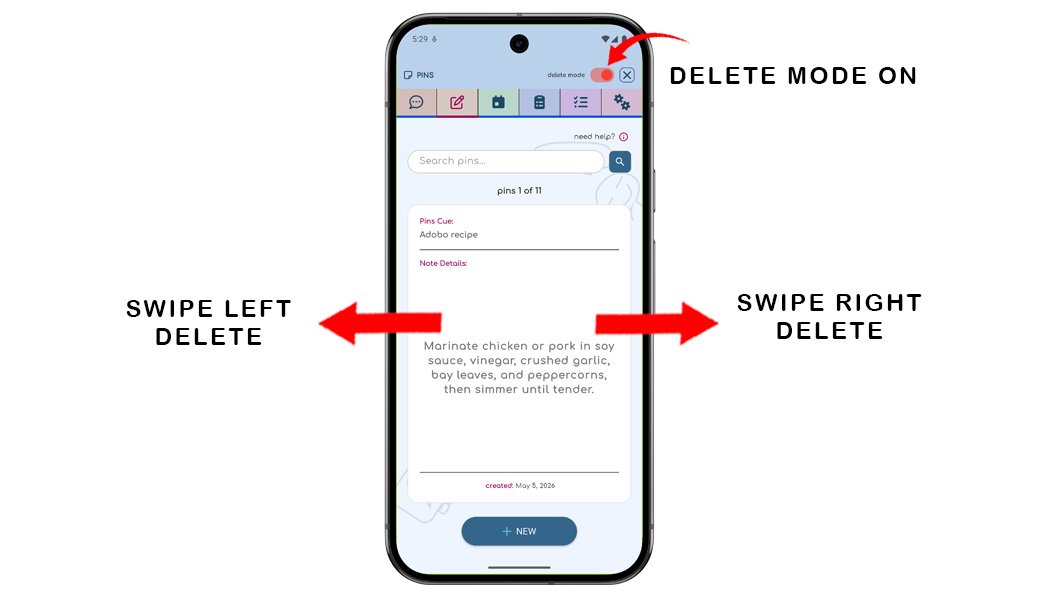
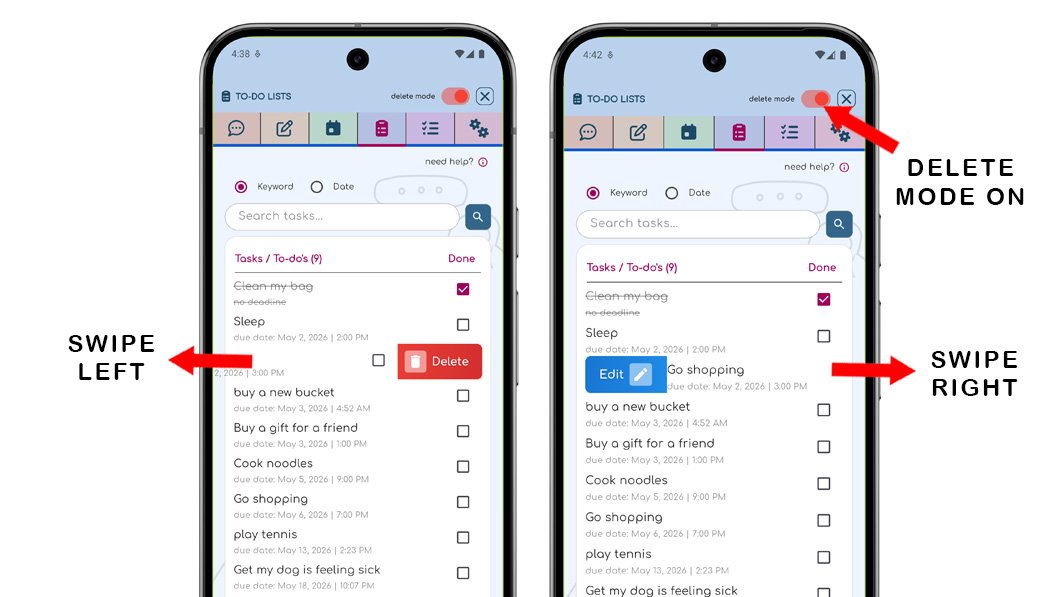
Once delete mode is on, your saved stickies become interactive:
ChatNotr will not ask for confirmation. This is intentional by design. The delete mode toggle acts as your safeguard, so once you turn it on, editing and deleting is smooth and uninterrupted.
ChatNotr is free to use — just register with your email address to get started.
Here is what is included with a free account:
Chat-assisted note-taking, which lets you save and retrieve notes by simply typing a message, is available on paid plans.
Start by heading to the Chat screen to learn how to use and interact with the AI assistant using commands.